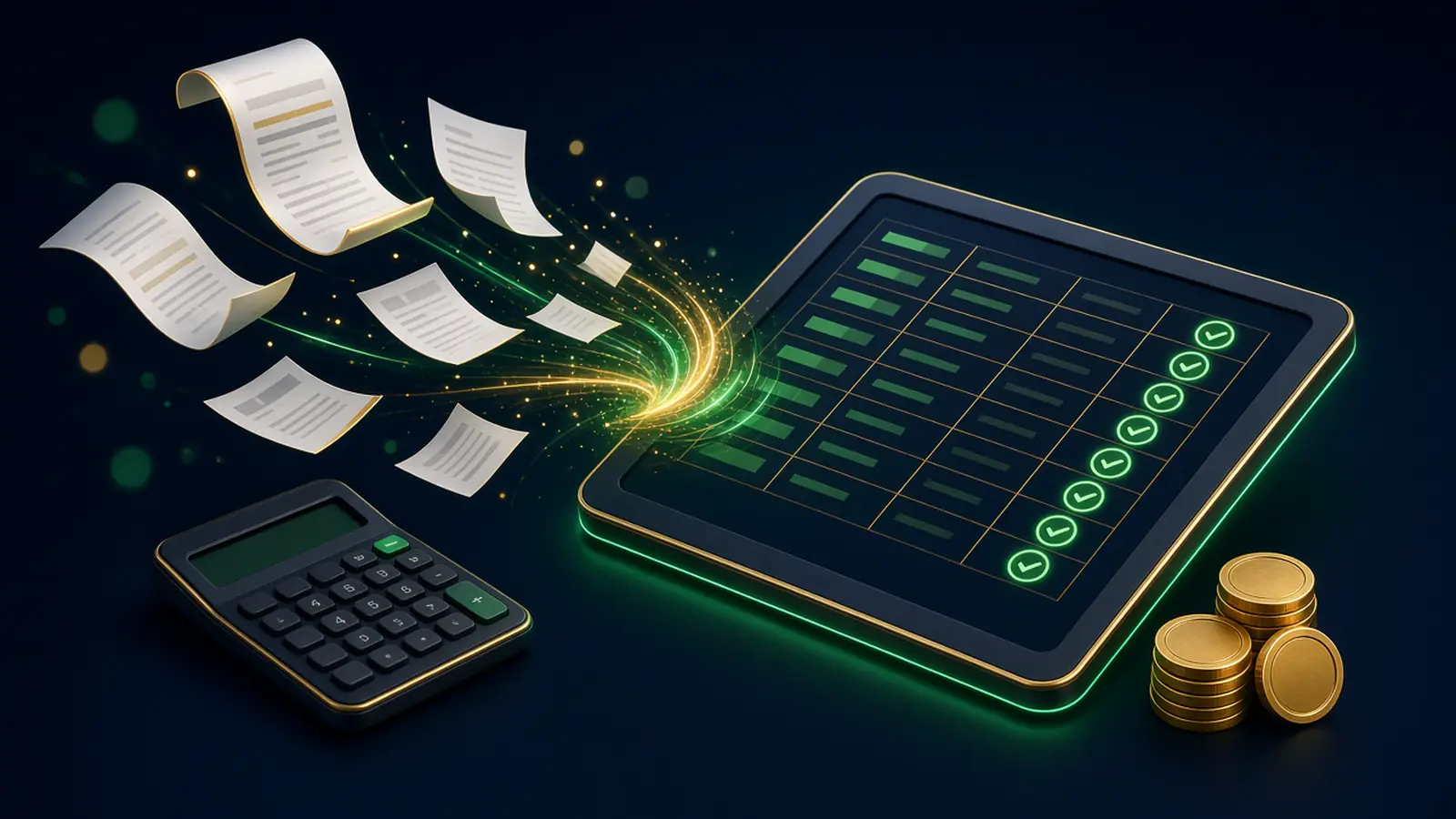
Receipts get lost in bags, inboxes, and the camera roll. Invoices you owe, and invoices owed to you, slip because nobody opened the thread. Capture can be automatic. The decision to post a new or odd expense still belongs to a person who knows the business.
The goal is a single pile of expenses that already has a date, a supplier, an amount, and a suggested category, plus a short list of invoices that need a reminder. It is not a promise that the books are finished.
What to capture, and from where
Pick the paths receipts already take. Most small businesses only need three:
- A photo of a paper receipt, taken the day you get it.
- A dedicated inbox or a forward from the inbox you already use, for receipts that arrive as email.
- A file drop for PDFs you download from a supplier.
Each capture should store the image or the file, the date on the receipt, the supplier name, the total, the tax if it is printed, and the payment method if you can see it. If a field is not on the page, leave it blank. Do not invent a tax amount to make the row look complete.
Write the rule for duplicates. The same dinner photographed twice, or emailed and then photographed, should become one expense. Match on supplier, date, and amount. When two captures are close but not the same, keep both and flag them.
Categories you will actually use
Auto-categorisation only works if the list is short and familiar. Start from the categories your accountant or your accounting software already uses. Do not invent a parallel list.
For suppliers you buy from often, map the supplier to a category: the packaging company to packaging, the carrier to postage, the software subscription to software. When a receipt arrives from a mapped supplier and the amount looks ordinary, the suggestion can be applied and the row marked ready for review.
When the supplier is new, or the amount is far from what you usually pay them, the row waits. "Ready" means a person can post it in one look. "Waiting" means someone has to decide. A waiting row is a success. A wrong category posted with confidence is not.
Invoice reminders
Separate money in from money out.
For invoices you have sent, a reminder goes out only if the invoice is unpaid, the due date you set has passed, and you have not already sent a reminder inside the gap you chose. The message is the one you wrote: what the invoice is, the amount, and how to pay. It does not threaten, and it does not offer a discount the invoice does not contain.
For bills you owe, the reminder is internal. It names the supplier, the amount, and the due date, and it lands with the person who pays. It does not pay the bill. Payment stays a separate step, with the approval you already use.
Keep a do-not-remind list for clients or suppliers you are already talking to. A reminder landing in the middle of a dispute makes the automation look rude.
Set it up in this order
- Agree the category list with whoever files your accounts. Write it down.
- Map the suppliers you can name without looking them up. Leave everyone else unmapped.
- Choose one capture path and use it for a week. Add the second path only after the first is dull.
- Turn on suggestions. For the first week, nothing posts without a person pressing the button.
- Write the two reminder messages, one for clients and one for yourself, and set the gap between reminders.
- After a month of clean rows, you can let mapped, ordinary amounts mark themselves ready. New suppliers still wait.
What you still read
Once a week, open the waiting pile and the duplicates. That is the work. Also look at anything categorised to a catch-all such as "general" or "ask." If the same supplier keeps landing there, map them. If a personal expense has slipped into the pile, take it out and tighten who is allowed to forward receipts.
The capture is working when month-end starts from a list, not from a search through pockets and inboxes.
If you want receipt capture and reminders set up around the accounting software you already use, send a request for bookkeeping automation.